It's time to get down to earth, create some code and get it running, see results, see a program executing in front of our eyes, the famous "Hello World" in C++.
Creating a project on Code::Blocks
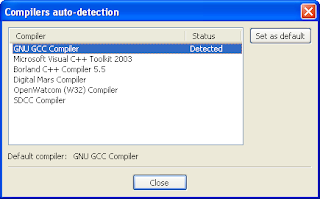
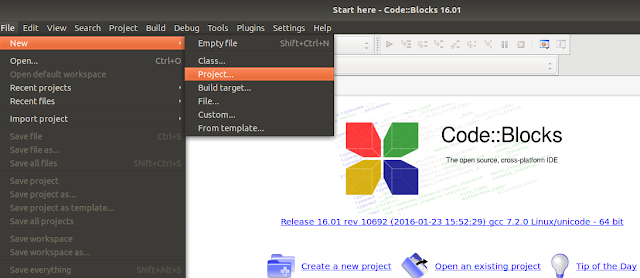
In the last tutorial of our course, we taught you how to install everything to start programming in C++. Now open your IDE, Code Blocks. If it's open a compiler autodetect window, choose GNU GCC Compiler, and go OK.Go to File, then New and finally Project (or click right there on the link on the Code :: Blocks homepage, Create a new project):
In the screen that will open, choose Console application and press Go:

At the next screen, choose C ++ and press Next.
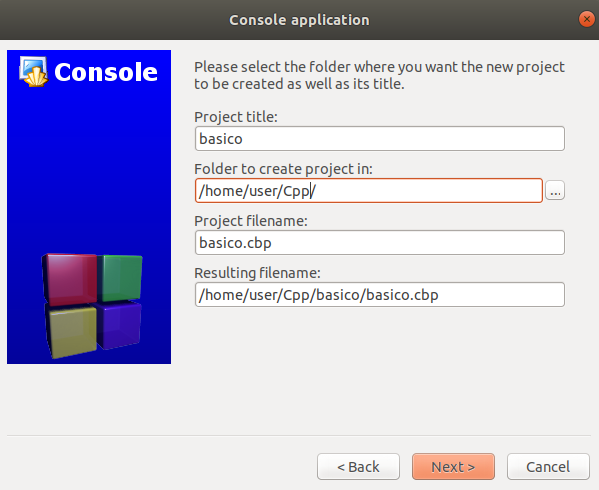
Next you will need to choose a name for your project (I chose 'basico', avoid accent and white space), and then a directory (folder) on your machine to save the project.
Click on Next:
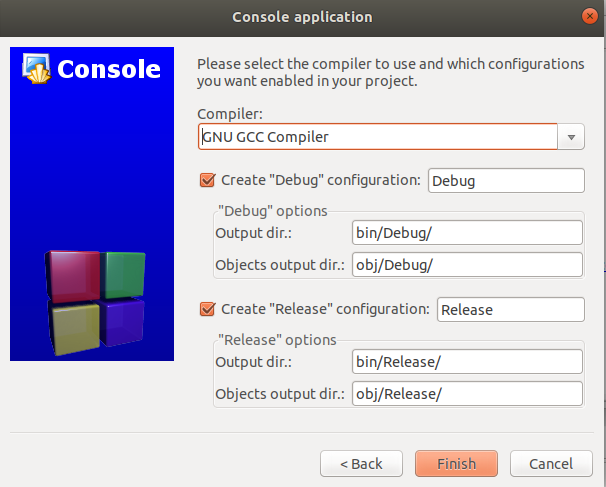
Then click on Finish:
Programming the first C++ program
When you follow the previous steps to create a C++ project in Code Blocks, the window below will appear.There is a menu on the left with your Workspace (where you will save your C++ projects). Click on the project you created (mine I named it 'basico'). Then in sources (where the source code will be) and finally in the main.cpp file
This file, with this extension cpp (from C++, C plus plus), is where we will type the C++ code.
You may already have a code for you, otherwise enter the following:
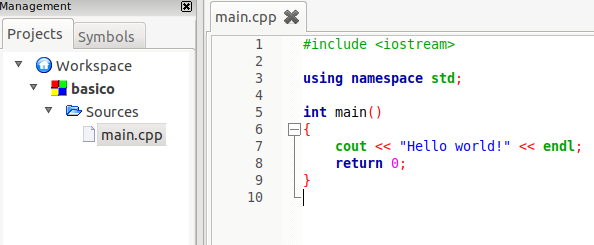
If something has already appeared written, delete everything. This step is important and essential to becoming a good programmer.
Delete everything and write with yours own hands, word for word, command by command, the following code, being careful not to err:
#include <iostream>

int main()
{
    cout << "Hello, world";
    return 0;
}
Compiling and Executing a C++ code
To see the program working you need to compile this code and run the generated file.This can be done by command at a terminal (command prompt), those dark little screens ... but this scares the beginner, because it gives the impression that you need to be a 'genius' of computing, to program, which is not truth.
Simply find the gear symbol and play, Build and Run, and click it:
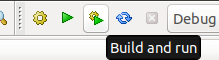
There will be some things written down below in the Build log and then a black window opens, and it says "Hello world" and some more program information, such as the runtime:
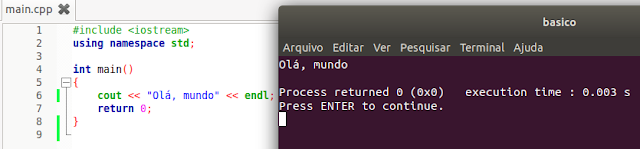
Ready.
You entered a code, compiled it and ran your program. Officially you are already a programmer, a paladin master of the computational arts in C++.
NASA and FBI take care of itself.
But let's go deeper, because here the business is serious, the teaching is complete.
Understanding the C++ code
How about we understand a little more what this weird alphabet soup and commands we type?Don't worry if you don't understand a lot now (in fact, if you understand something, it's already in profit), you will master it over time in our course.
In the first line we have the command: #include <iostream>
Before the code is compiled, a piece called a preprocessor is triggered. It takes the lines beginning with #, which are the preprocessor directives. This line does nothing but tell the preprocessor to include the iostream file in the code.
This file is responsible for inputs and outputs (io - in and out), such as receiving user keyboard data and displaying information on the screen. That is, you do not need to program these features, they already exist, just put the iostream file that this code is automatically ported to your executable.
The next line is blank, it has absolutely nothing, only aesthetic and organizational issues.
The next line starts the main, ie the main function. Every C++ program starts with this function. Function is nothing more than a block of code (everything in braces is part of the function), we will study in depth the theme functions in the future.
Int refers to an integer, says this function will return an integer value.
In fact, it returns the value 0 (see line: return 0;)
The next command is cout (C out).
It is an exit command, it sends information somewhere. In this case, to your computer screen.
And what information will he send? Whatever is after the <<
What has after this symbol is a string, ie a text. All text / string (group of characters) is enclosed in double quotation marks.
In our case, our text is "Hello, World", so everything in double quotation marks will appear on your program screen. Note that the command ends with a semicolon;
This symbolizes the end of the cout command.
Finally, the return 0; command terminates the main() function.
Note that all function code is between {and}
Preprocess, Compile, Link, Load and Run a C++ Program
Let's understand a little bit now what happens under the hood when we click the Build and Run button.The first step to programming is to type the text, the code, in a text editor.
In the case, since Code :: Blocks is an IDE (full programming environment), it comes with this editor, nothing more than this blank space that we typed our code, as if it were a notebook.
When we click compile, before compilation the preprocessor is executed, and its function is nothing but to hunt preprocessing directives, it is nothing more than to do some manipulations in the code before compiling, such as including some external files in your program, with code ready so you don't have to rewrite and also do some text replacements.
In the future we will study the preprocessor in more detail.